Poke it.
Your coding agent knows exactly where.
Click an element on any page and type what should change. Poke UI hands your AI coding agent that note plus exactly which element you mean: its selector, box, styles and HTML. The agent doesn’t have to hunt for the element or ask you back, so it spends fewer tokens and each round of UI changes goes faster.
Free for Chrome, Brave and other Chromium browsers
Click the toolbar icon on any tab. The notes panel opens there.
-
 01
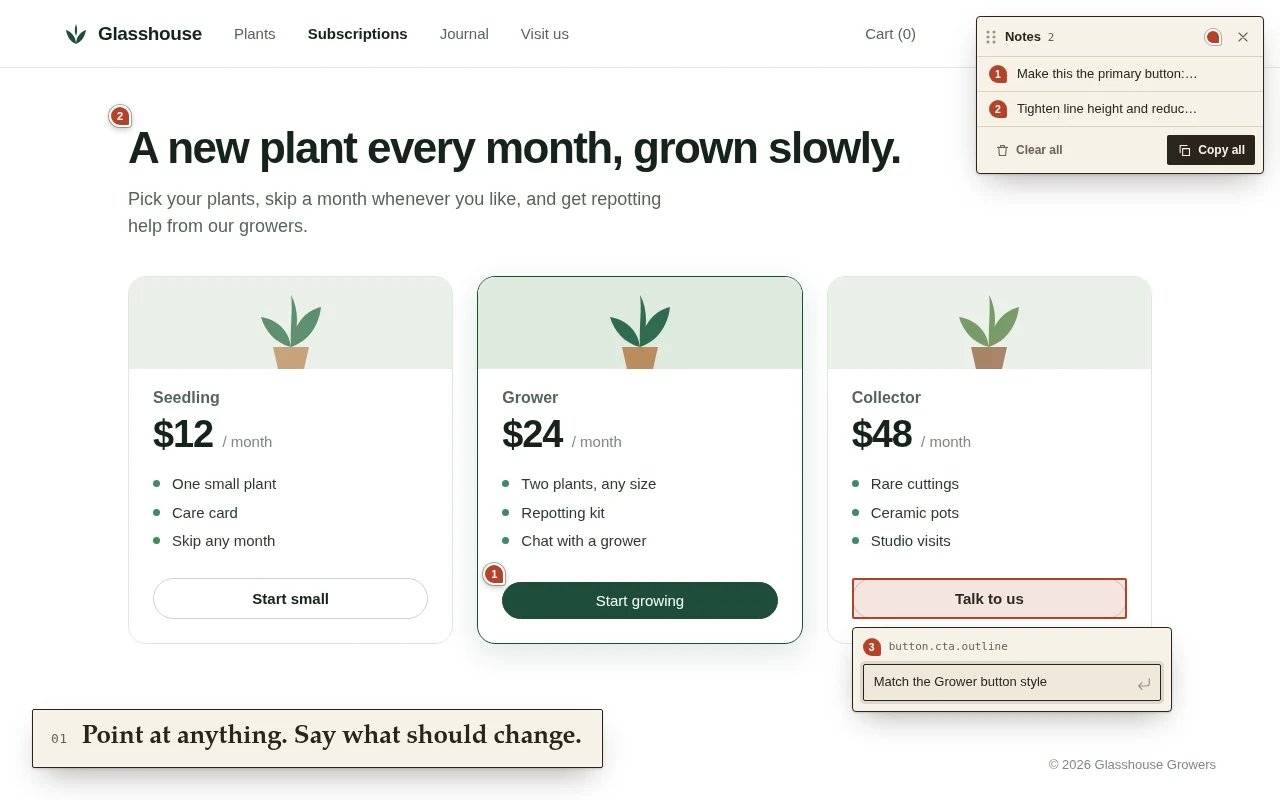
01Point at anything. Say what should change.
Click an element and type the change. Enter saves, Esc cancels and Shift+Enter adds a line break. Each note becomes a numbered pin on its element.
-
 02
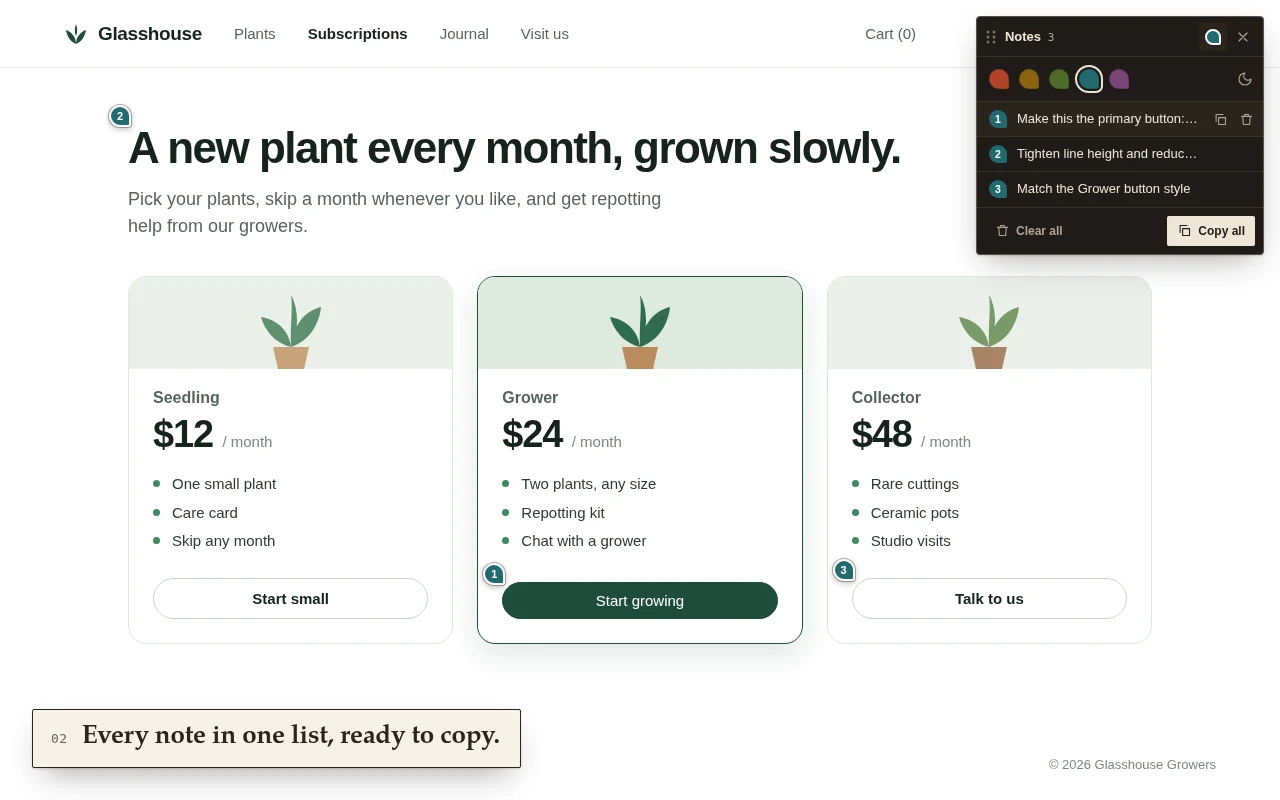
02Every note in one list, ready to copy.
Copy or delete one note, or copy them all. Pick a pin color (Rust, Ochre, Moss, Teal or Plum) and a light, dark or automatic theme for the panel.
-
 03
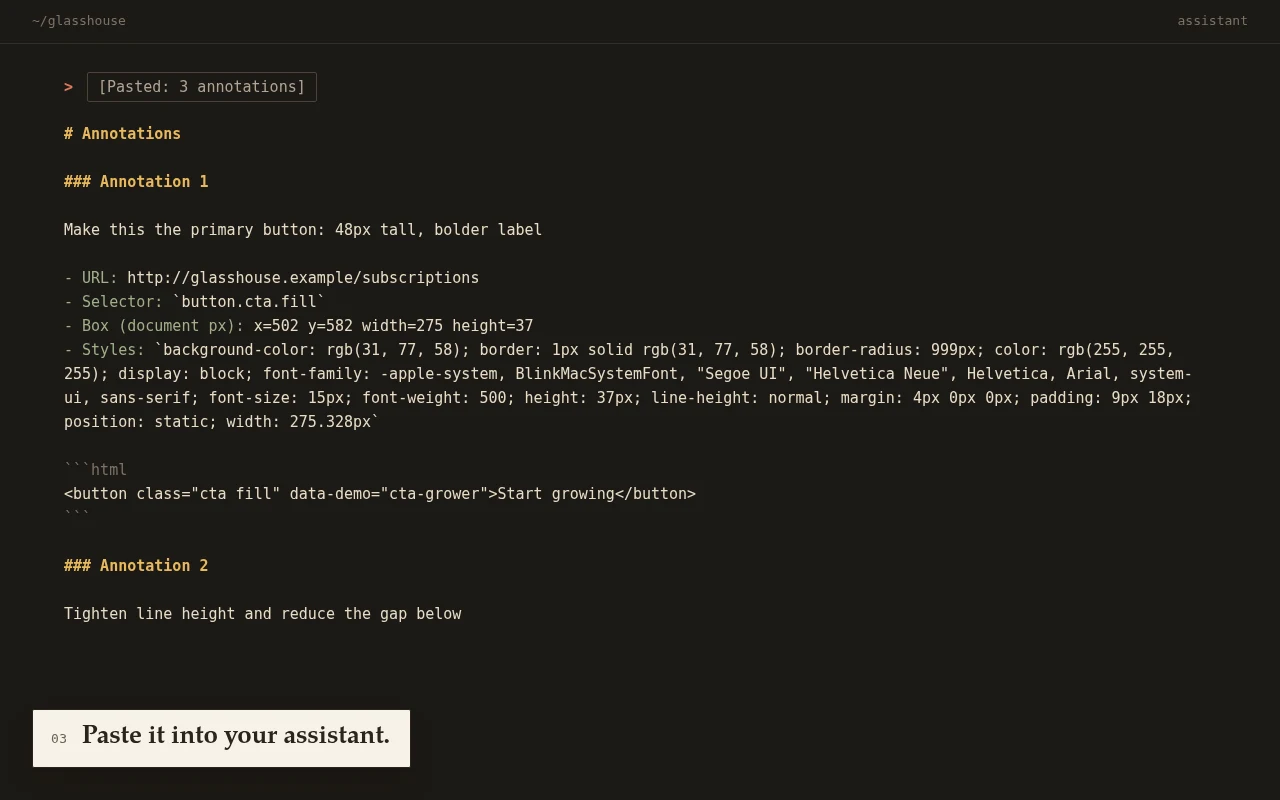
03Paste it into your assistant.
Copy all puts every note on the page on the clipboard as one markdown document for Claude Code, Codex, Cursor or any other coding agent.
A small, precise bug report for each remark.
“Make the button bigger” is hard to act on without the page in front of you. So each note carries what a coding agent needs to find the element.
Try it on this page: click a line below, or tab to it and press Enter. Type a note and press Enter to save.
- Note
- Your text
- URL
- The full page URL
- Selector
- A CSS selector that matches only that element, anchored at a unique
idwhen there is one - Box
- Position and size in document pixels
- Styles
- 14 computed properties: color, background, font, spacing, border, display and size
- HTML
- The element’s markup, cut at 400 characters
# Annotations

### Annotation 1

Make this the primary button: 48px tall, bolder label

- URL: http://glasshouse.example/subscriptions
- Selector: `button.cta.fill`
- Box (document px): x=502 y=582 width=275 height=37
- Styles: `background-color: rgb(31, 77, 58); border: 1px solid rgb(31, 77, 58); border-radius: 999px; color: rgb(255, 255, 255); display: block; font-family: -apple-system, BlinkMacSystemFont, "Segoe UI", "Helvetica Neue", Helvetica, Arial, system-ui, sans-serif; font-size: 15px; font-weight: 500; height: 37px; line-height: normal; margin: 4px 0px 0px; padding: 9px 18px; position: static; width: 275.328px`

```html
<button class="cta fill" data-demo="cta-grower">Start growing</button>
```
A demo inside this page: the extension isn’t running and nothing is saved. Note 1 is the one pinned to the headline.
Your notes stay in your browser.
Notes are kept in chrome.storage.local on your device. There are no servers, analytics, ads or remote code, and notes reach the clipboard only when you click a copy button.
| activeTab | Access to the current tab, granted only when you click the icon |
|---|---|
| scripting | Adds the annotation script to that tab at that moment |
| storage | Saves notes, marker color and theme on your device |
No host permissions, so no “read and change all your data” warning at install.
After a full reload the pins stay hidden until you click the icon again; the notes are still saved. Browsers don’t allow extensions on chrome:// pages or the Web Store.